

Member Portal (Pushpay/CCB) Support
PushPay/CCB is the software we use for our member portal and giving platform.
About Our Member Portal (Pushpay)
Our parish uses Pushpay/CCB as a secure way to help us stay connected, care for one another, and support the ministries we share. Through this system, members can give online, update household information, register for events, participate in groups or ministries, and receive parish communications. It also helps parish staff and ministry leaders keep accurate records so we can serve the congregation with greater care.
Member Portal Guide
Setting Up Your Profile Picture
Member Portal Guide
-

Logging In
If you already have a member account (Pushpay/CCB), CLICK HERE to log in.
-
Giving Instructions
You can easily give anytime with Pushpay. Click Here to Donate, or Donate by Text Message: Text “Give” to (877) 767-4140 (Save as “Saint Peter’s Giving” in your contacts)
Giving Setup
Starting your giving through Pushpay is an easy process!
Text “give” to (877) 767-4140. The phone number is our dedicated text number, so it can be saved as a contact named “Saint Peter’s Pushpay.” The text will include a link to our giving page, where you can contribute one time or set up recurring gifts.
Please note that we will never ask for your financial or credit card information directly via text—for security, that information will only be asked for on the giving page. If you see a suspicious text that comes from a different phone number than the one above, or one that asks for your personal or banking information directly in the text, please delete the message and notify the church office. Or you can visit saint-peters.org/givingand click the “Give Now” button.
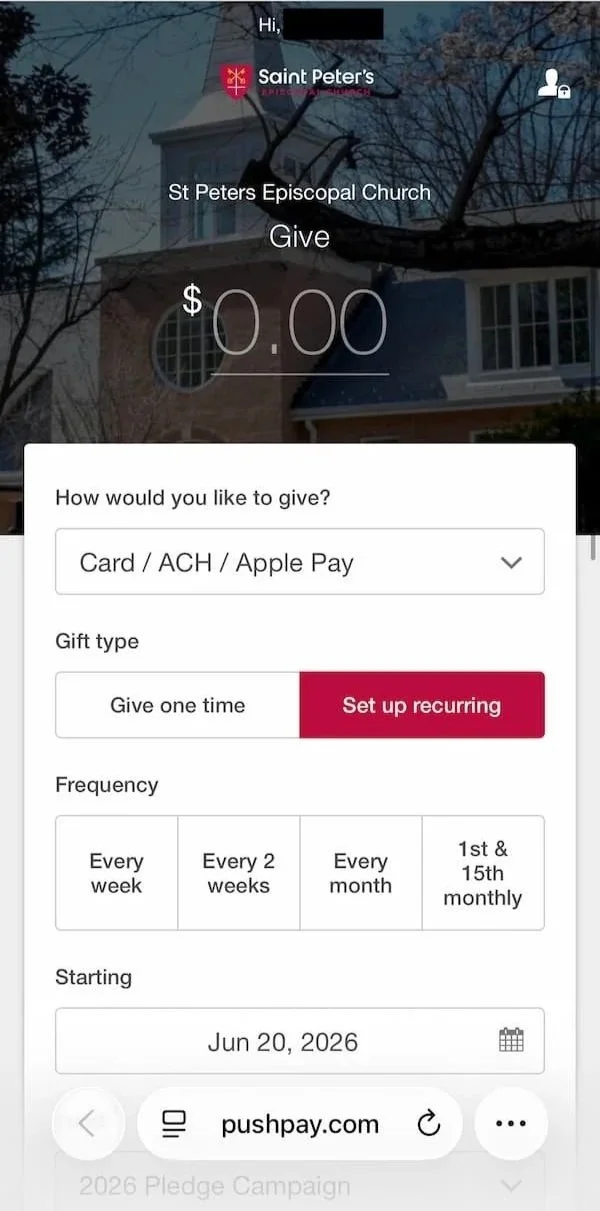
Complete the form by filling out your gift amount, frequency (if you are starting a recurring gift), banking or card information, and your contact information.
Upon entering your phone number, you will be sent a text message containing a 6-digit security code. This is to verify your identity and confirm your phone number is entered correctly. The 6-digit code must be entered to complete your gift.
Member Profile Setup
If you have attended events, made payments, given gifts, or received mail from the church, you should already have a profile—we’just need to get you access to it.
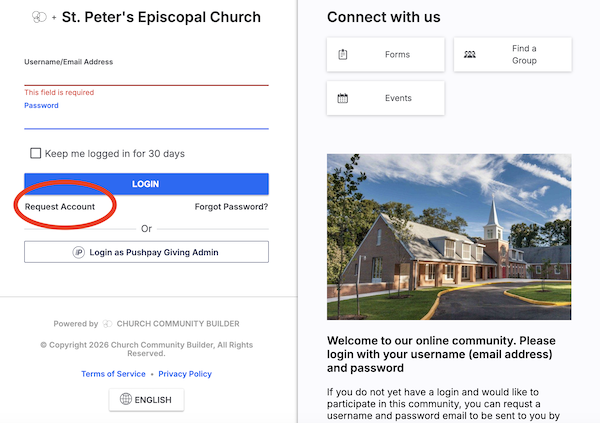
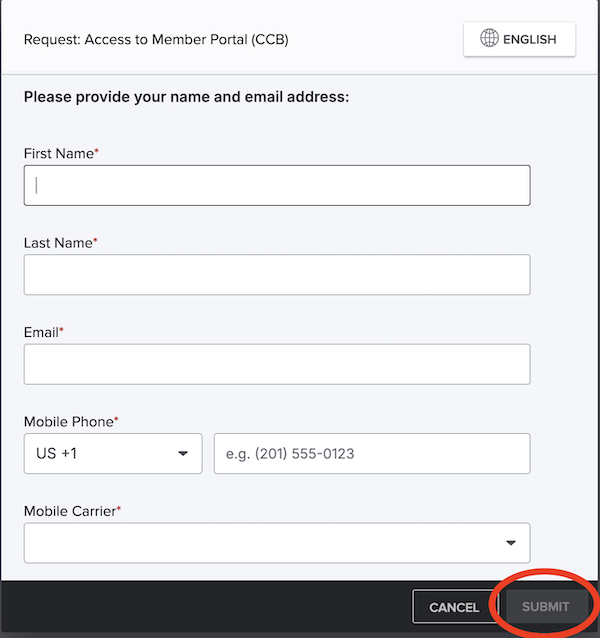
1. To get connected to your account, go to saintpeters.ccbchurch.com/goto/login and click on request an account. You will be prompted to complete and submit a request for account form. You will receive an email within 24-48 hours with an activation link.
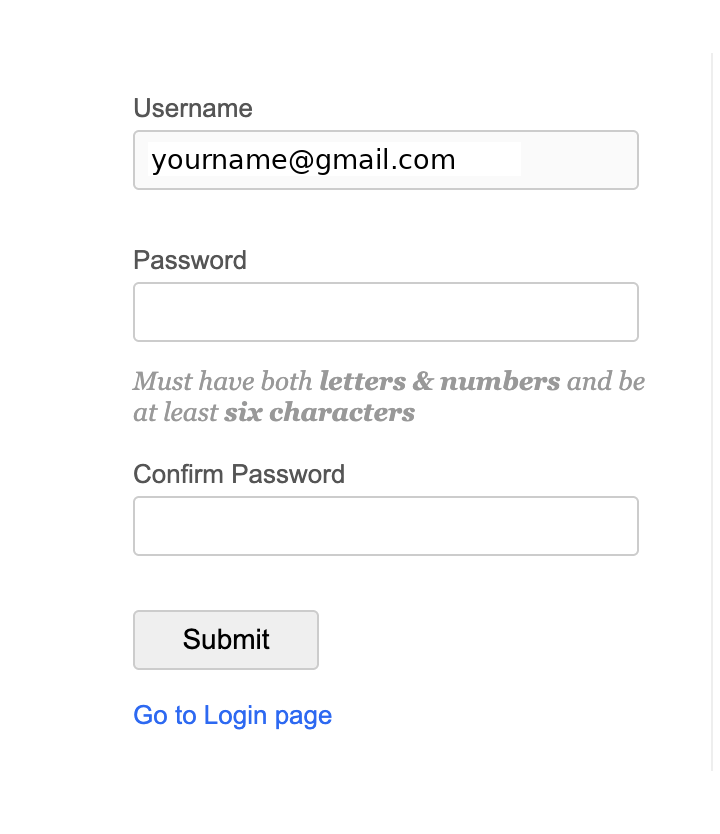
2. Click “Activate Login” to set up your account. You will be promited to set up your password. Once you set your password, click “Go to Login page” to review your personal profile information, and update your profile.
Add a Photo and Update Your Profile
When you log in for the first time, review your profile and add a photograph. Doing so will help our Rector and staff get to know you faster.
To add a photo, log in, navigate to your profile page from the menu in the top right. Click on the circle, and then click on “profile.”

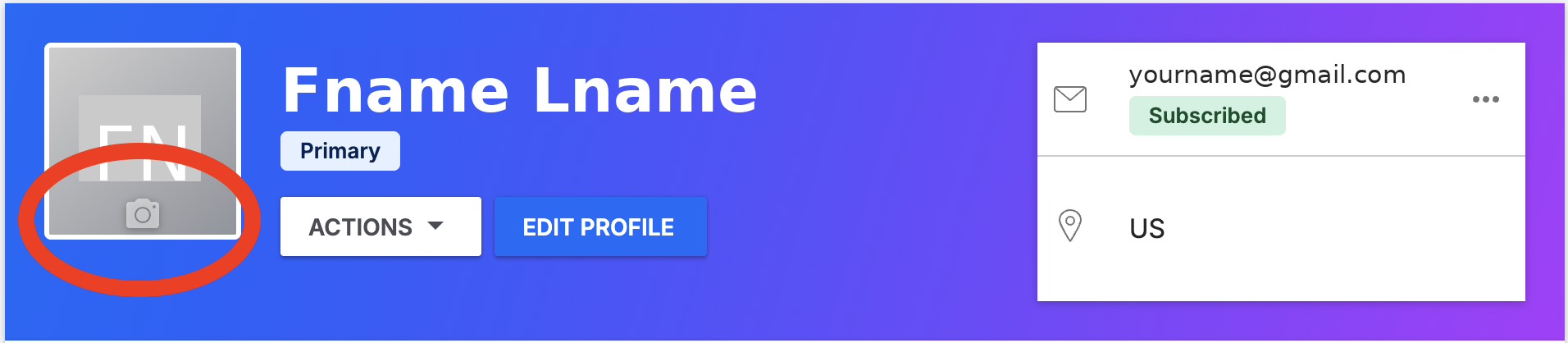
Update your photo: On your profile page, click on the camera icon in the profile picture square. This will open up a window for you to select your profile picture from your computer or device.
Once you have selected a file, it will take you to a preview window where you may adjust or resize the part of your picture that is displayed.
Click “Add” in the bottom right to set your photo. Your profile picture is now set.
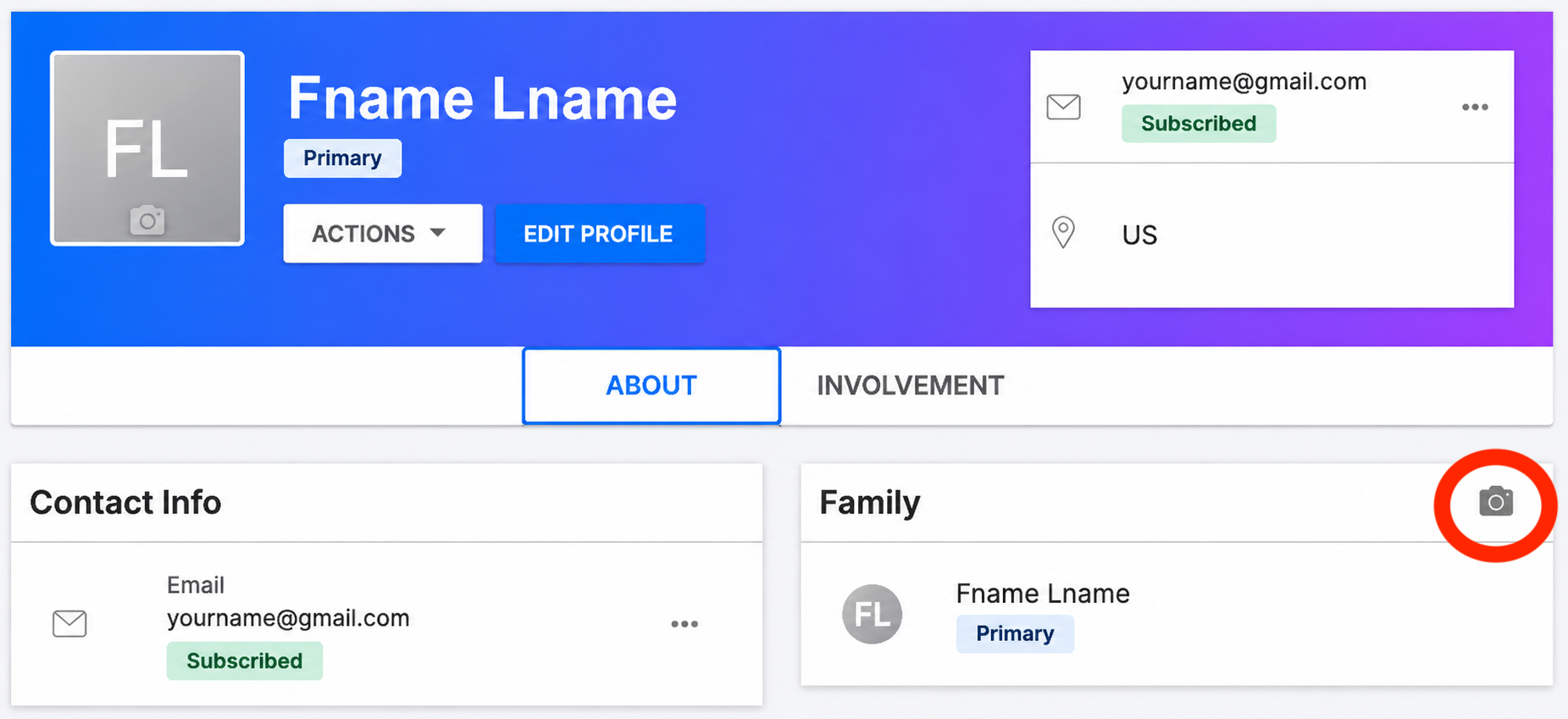
Family photo: If you are a member of a family, you can add a family photo by clicking on the “About” button and navigating to the camera icon in the “Family” section.
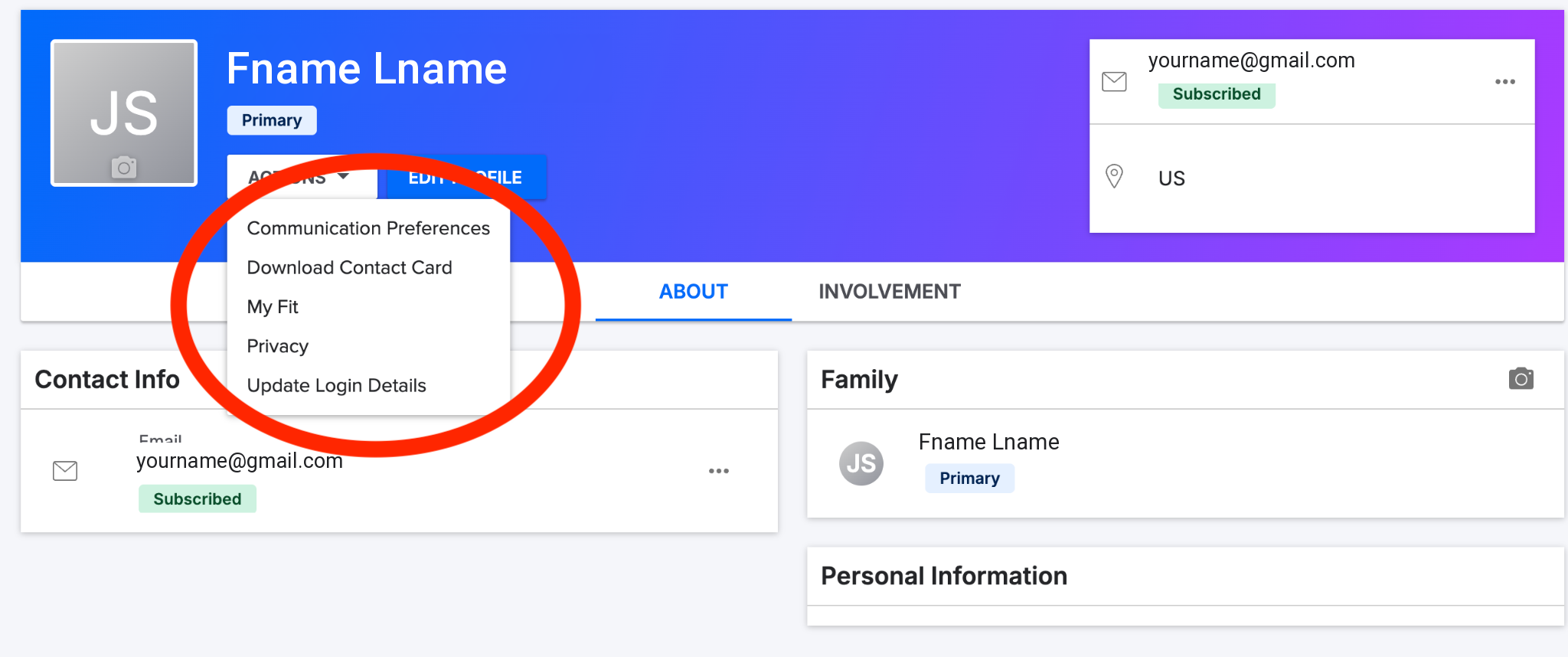
Update your profile: Click on the “Update your profile” button to review your address, phone number, and any additional information you would like to share. Birthdates are not shared with others.
Communications preferences: Click on the “Actions” button to update your communications preferences, including unsubscribing from emails.
Resetting your password Click on the “Actions” button and go to “Update log in details” to update your password.
Check your giving
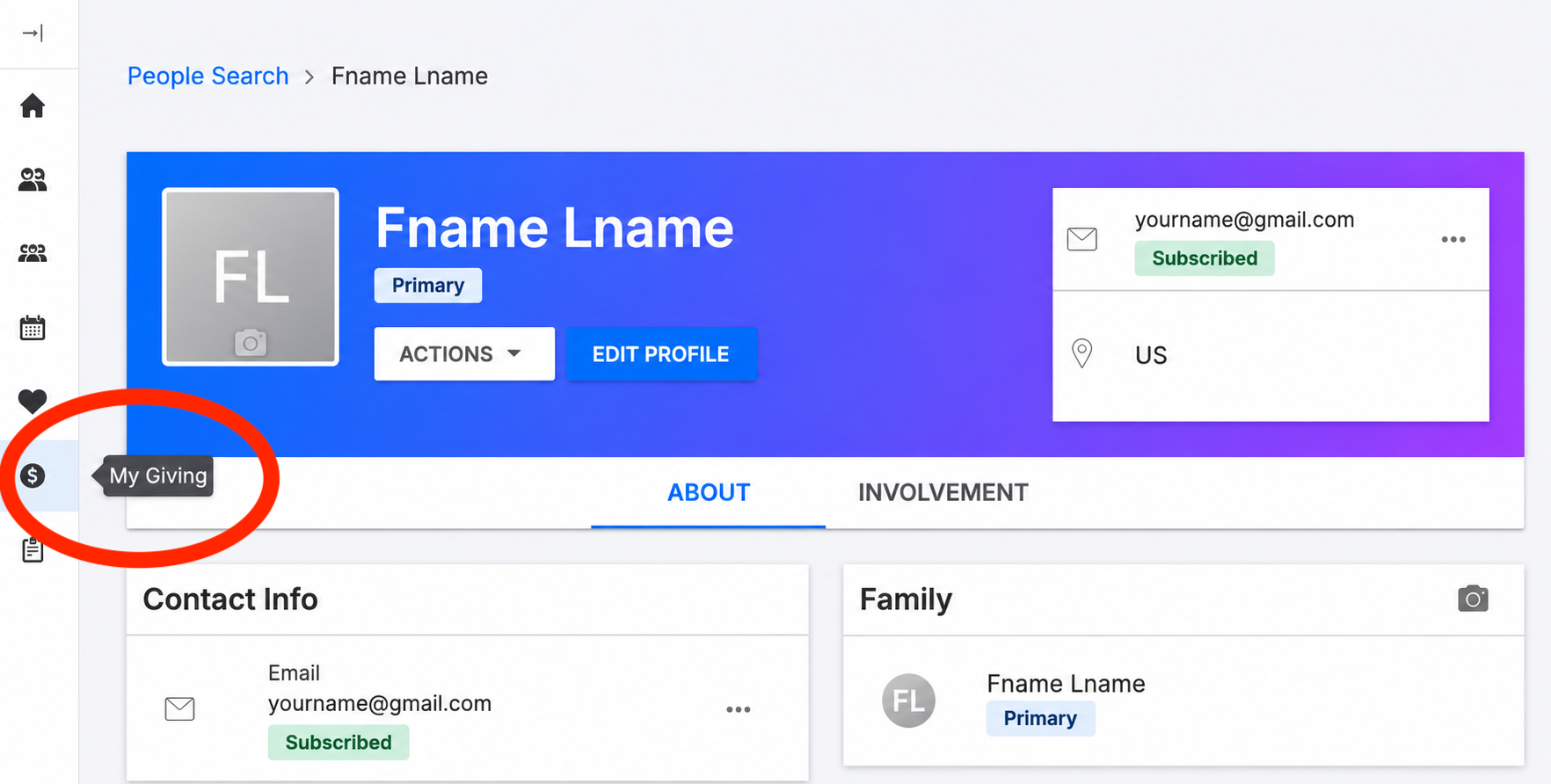
You can check your giving with the navigation bar on the left. Simply go to “Giving.” Note that all giving is attributed to the primary person in the household. Giving statements generated by the office combine all giving within the household into a single statement.
Saint Peter’s App Guide
-
Download the Saint Peter's App
-
Log into the Saint Peter's App
Log into the Saint Peter’s app with the mobile phone number associated with your member profile in Pushpay/CCB . If you don’t have it, no worries. Just continue with the information you have. If you have a member account, the system administrator will be prompted to merge your app profile with your member profile in Pushpay/CCB.
Sign in or Register
Once you begin creating or signing in to the Saint Peter’s app, you will be prompted to enter your mobile number. Once the mobile number is entered, tap Send Code to receive an SMS verification code.
Once you receive your verification code, you will need to enter that code and tap Next.
If your mobile number is attached to an existing Pushpay account, you will only need to enter the SMS verification code to be matched with your existing account.
If your mobile number is not recognized, additional information such as name and email address is required.
When you receive this prompt, you can select between the following:
Create Profile to begin creating your app profile
Skip for now to navigate to the app home screen
Note that if you open your app and do not see any groups or the parish directory, you are likely not logged in. Log in.
Your Profile Page
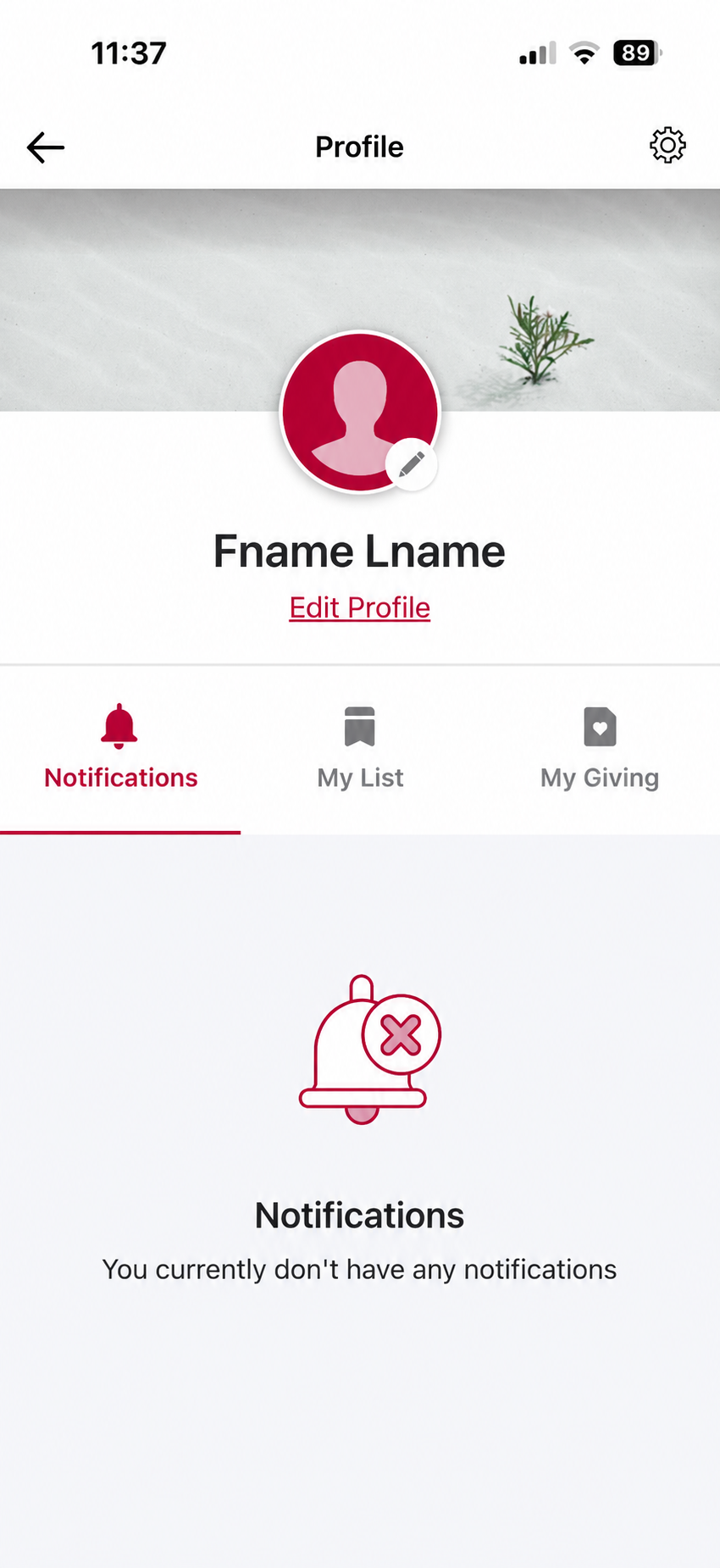
Once you’re logged in, you’ll be able to view and edit a few different sections of your profile page.
Images – You can add both a profile and a cover photo.
Personal Information – Your name, email address and phone number can be edited here.
Birthdate and Mailing address can also be changed from the app.
-
Notifications
From the Notifications tab, you can access your push notification inbox. From this screen, you can click on each push notification to review it, or choose to mark all as read or delete them all.
-
My List
In the My List tab, you will be able to access content that you previously Bookmarked and/or downloaded.
You can learn more about Bookmarks within the app by visiting this help article.
You can learn more about the Audio Player and how to download audio files by visiting this help article.
-
My Giving
This tab allows you to (1) see a quick overview of your giving history, (2) make a donation, (3) access giving statements, and (4) see your latest transactions.
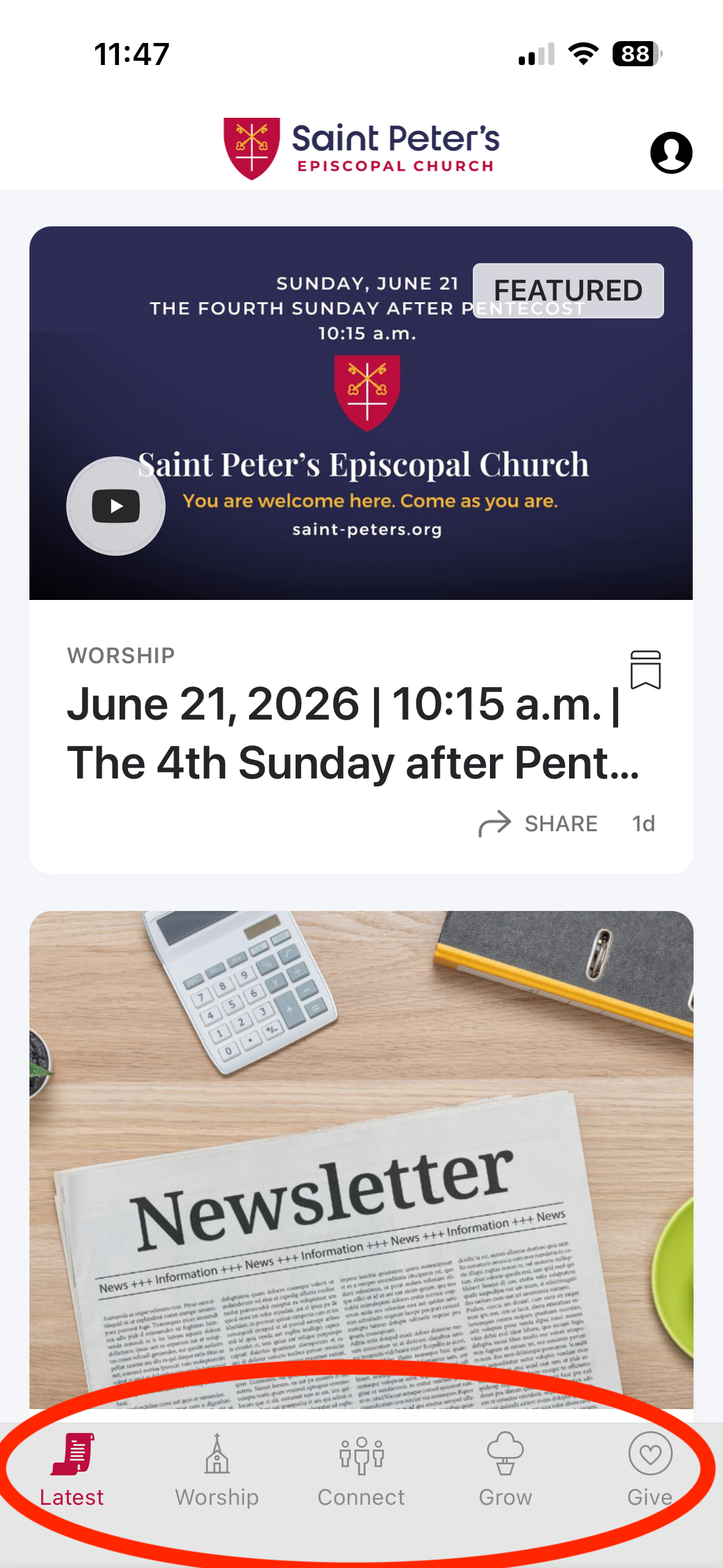
Navigating to Latest, Worship, and Grow
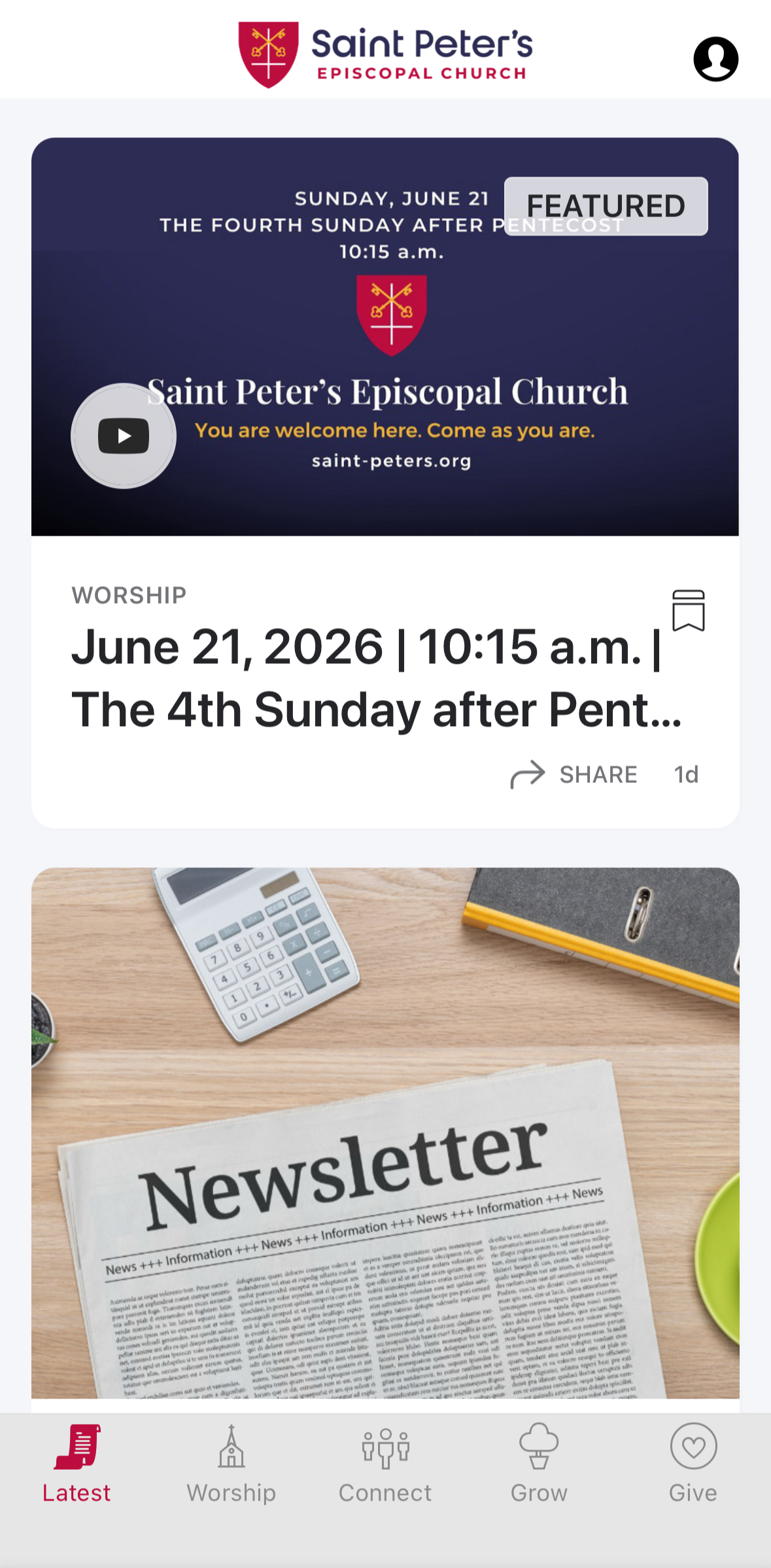
The Latest button on the bottom panel take you to the parish newsletter, find contact information for the office, plan your visit, and learn more about social media at Saint Peter’s.
Use the Worship button to find the latest worship bulletin, sermons, and other worship information.
Connect will take you to groups, including the Parish Directory. Read more below about Connect.
The Grow button links to Saint Peter’s web pages related to Sunday School, Adult Forums, and other classes.
If you want to give a donation, click on the Give button.
Connect (Directory and Groups)
Using the Connect button on the bottom panel, you can see all of the groups you are a member of.
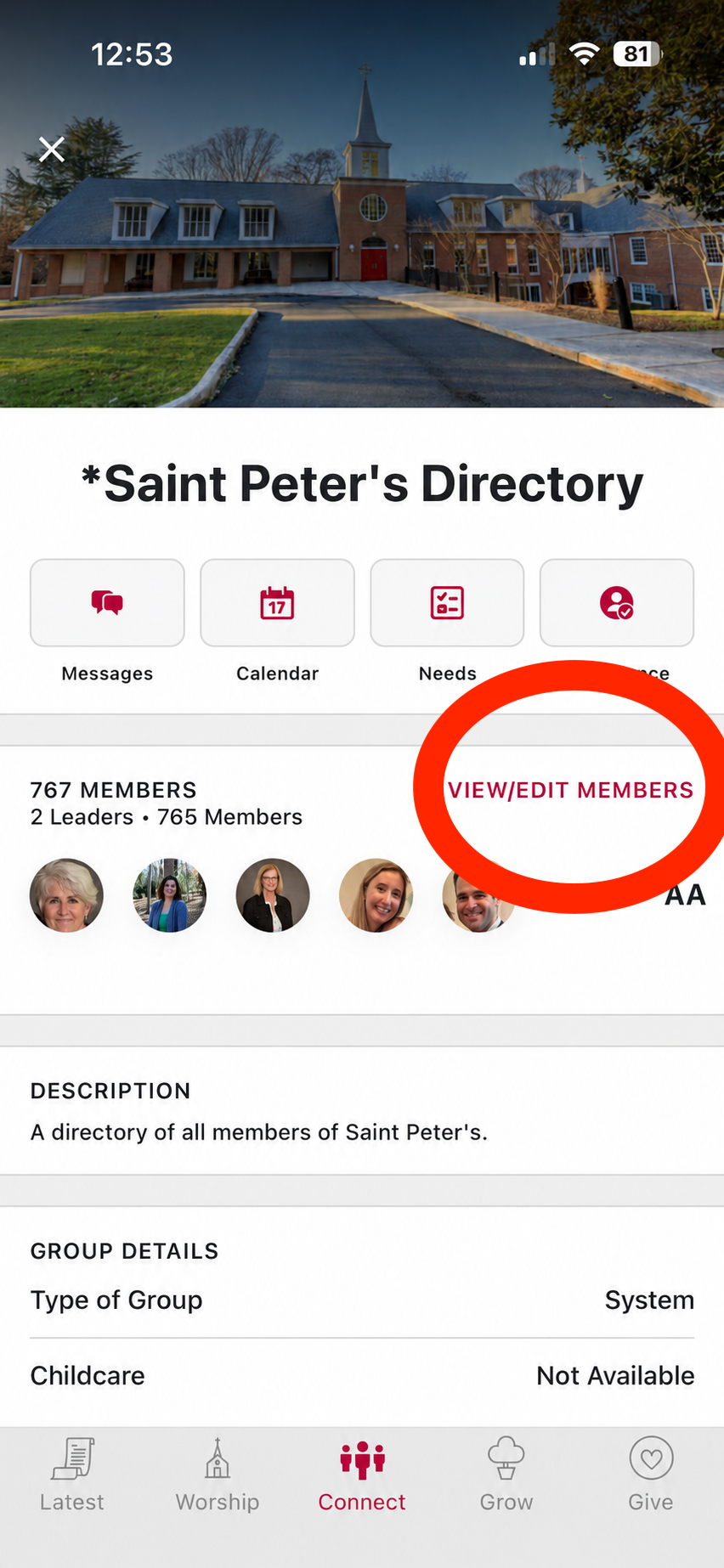
Click on Parish Directory to see a list of groups you are a member of. Everyone is a member of Saint Peter’s Directory. Near the top right you can choose to View/Edit Members for a full list view with phone numbers and email addresses. For security purposes, addresses are not available in the app. If you do not see Saint Peter’s Directory, you are not logged in. If you still don’t see it after logging in, call the office at 703-536-6606. You likely have two member accounts.
In your groups, you can do things like:
View group messages
View & add events to the group calendar
View & add needs for your group
Record attendance or notes for events
Note: Some of these actions, like recording attendance, may require group leader permissions to perform.
Contact information feature can be opted out of using privacy settings. Please submit a request to our office staff, or manage your privacy settings via the browser version of Pushpay. Additionally, mailing address information is not available from this view.